








Walking is one of the simplest ways to add more movement to your day. A smartphone can help you understand how much you walk by counting your steps and showing activity patterns over time. You do not need special equipment or advanced technical skills to get started.
This guide explains how smartphone step tracking works, how to check your data, and how to improve accuracy while building realistic walking habits.
How Smartphone Step Tracking Works
Most modern smartphones include motion sensors that detect movement. These sensors can recognize patterns associated with walking and estimate the number of steps you take.
Your phone may use a combination of:
– An accelerometer, which detects changes in movement and speed
– A gyroscope, which helps identify direction and rotation
– Location services, which can help map outdoor activity
– A health or fitness app, which stores and displays your information
Step counters do not directly “see” each step. Instead, they use sensor data and software to estimate movement. As a result, the number shown on your phone may not always match the exact number of steps you take.
Choose a Step Tracking App
Many smartphones include a built-in health or fitness app. These apps can count steps automatically when the phone is with you. You can also download a separate walking or fitness app if you prefer additional features.
When choosing an app, look for:
– Automatic step counting
– Daily and weekly summaries
– Simple charts or progress reports
– Battery-friendly settings
– Clear privacy options
– Compatibility with your smartphone
A built-in app is often the easiest place to start because it is already installed and designed to work with your phone’s sensors. If you use more than one tracking app, the apps may show slightly different totals.
Set Up Step Tracking
The setup process varies by device, but the basic steps are similar.
On an iPhone
Open the built-in health or fitness app and look for activity, steps, or walking data. You may need to review the app’s permissions so it can access motion and fitness information. Once enabled, the phone can begin recording steps when you carry it.
On an Android Phone
Many Android phones use a health or fitness app connected to the device’s motion sensors. Open the app, follow the setup instructions, and allow activity-related permissions when requested.
If your phone does not count steps, check the following:
– Motion or activity access is enabled
– The app is allowed to run in the background
– Battery saving settings are not restricting the app
– The phone’s software is up to date
– You are carrying the phone during walks
You usually do not need to keep the app open for every step to be recorded. However, the phone must be close enough to your body for its sensors to detect movement.
Carry Your Phone Consistently
The most important step tracking habit is simple: keep your phone with you when you walk.
You can carry it in:
– A pants pocket
– A jacket pocket
– A secure bag
– An armband
– A waist pouch
Try to use the same general carrying method each day. A phone in a loose bag may move differently from one in a pocket, which can affect the count.
If you leave your phone on a desk, in a car, or at home, those steps will not be included. This is one of the main reasons a smartphone may show a lower total than expected.
Understand Your Step Data
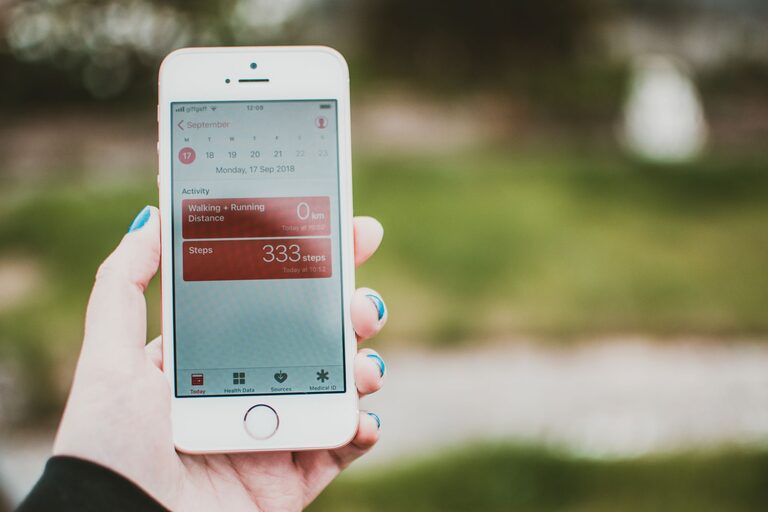
Most step tracking apps show several types of information. The daily step total is the most familiar, but other details can provide useful context.
You may see:
– Steps taken today
– Steps taken on previous days
– Distance estimates
– Active time
– Walking trends
– Hourly or weekly charts
– Personal records
Use this information to notice patterns rather than focusing on a single number. For example, you might discover that you walk more on workdays, take fewer steps on weekends, or become more active in the afternoon.
Distance readings are usually estimates based on step count, stride length, and sometimes location data. They may not be exact, especially if your stride length has not been customized.
Improve Tracking Accuracy
Smartphone step counters are useful, but they are not perfect measuring tools. You can improve consistency with a few simple practices.
Keep the App Updated
Software updates may improve sensor performance and correct known problems. Check your phone’s app store and system settings regularly for updates.
Review Permissions
If step data suddenly stops appearing, review the app’s permissions. The app may need access to motion, activity, or background data.
Avoid Constantly Changing Carrying Positions
Carrying your phone in different places can produce different results. Try to keep it in a secure location that you use regularly.
Check Your Personal Information
Some apps use details such as height, weight, age, or stride length to estimate distance and calories. Enter information carefully and update it when needed. If the app allows a custom stride length, you can estimate it by walking a known distance and comparing the result.
Compare Trends, Not Exact Counts
A step count is best used as a general activity measure. A difference of a few hundred steps from one day to another may not be meaningful. Look for longer-term patterns instead.
Set a Realistic Walking Goal
A common mistake is choosing a large goal immediately and becoming discouraged when it is difficult to maintain. Instead, begin with your current routine.
For example:
- Track your steps for several days without changing your habits.
- Find your approximate daily average.
- Set a small increase that feels manageable.
- Continue for one or two weeks.
- Adjust the goal gradually if desired.
You might add a short walk after lunch, take the longer route through a store, or walk while listening to a podcast. Small changes can add steps without requiring a major schedule change.
Your goal does not need to be the same every day. A flexible target may be easier to maintain during busy periods, travel, or poor weather.
Use Reminders and Check-Ins
Many step tracking apps offer reminders, notifications, and progress summaries. These tools can help you remember to move, but they should support your routine rather than interrupt it.
Useful ideas include:
– Set a reminder for a short afternoon walk
– Review your weekly total on the same day each week
– Keep a simple note about how you felt during walks
– Pair walking with an existing habit, such as a lunch break
– Celebrate consistency instead of only reaching a high number
Avoid checking your step count constantly. A quick daily review is usually enough for beginners.
Protect Your Privacy
Step data is personal activity information, so take a moment to review privacy settings. Check which apps can access your movement data and whether information is being shared with other services.
Helpful privacy practices include:
– Use apps from trusted developers
– Review permissions before approving them
– Disable access that is not needed
– Use a screen lock on your phone
– Read the app’s privacy settings
– Remove apps you no longer use
You can often use basic step counting without enabling every available feature, such as location sharing or social comparisons.
Make Step Tracking Work for You
Smartphone step tracking is most useful when it helps you understand your routine and make small, practical changes. The number on the screen is an estimate, not a judgment.
Carry your phone consistently, check your data regularly, and focus on gradual progress. Over time, step tracking can help you recognize opportunities to walk more and turn everyday movement into a steady habit.