









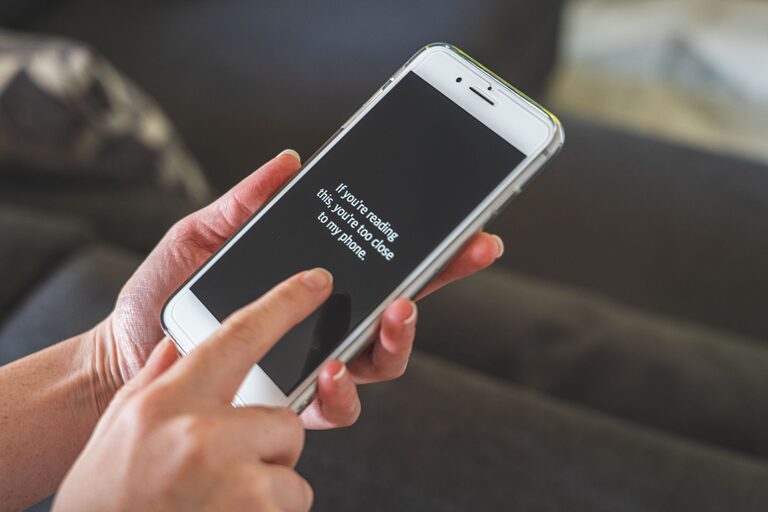
Reading on a smartphone can be difficult when text is too small, colors are hard to distinguish, or screens feel crowded. The good news is that most phones include built-in settings that can make messages, websites, and apps easier to read.
You do not need to change every option. Start with the settings that address your biggest challenge, then adjust them until the screen feels comfortable. The names and locations of settings can vary by phone model and software version, but the same basic tools are available on most iPhones and Android phones.
Increase the Text Size
The simplest way to improve readability is to make text larger. This setting usually affects menus, messages, contacts, and many apps.
On an iPhone, look for Settings > Display & Brightness > Text Size. On many Android phones, open Settings > Display > Font size and style or a similar option.
Move the slider gradually rather than choosing the largest size immediately. Very large text can make some screens harder to navigate because fewer words fit on the display.
Keep in mind that some apps use their own text settings. If a particular app does not respond to your phone’s text size, check the app’s settings or look for a text-size control within the app.
Use Display Zoom or Screen Zoom
Text size changes the letters, while display or screen zoom enlarges more of the interface. This can make buttons, icons, menus, and other controls easier to see as well.
On an iPhone, this may appear under Settings > Display & Brightness > Display Zoom. Android phones often include Screen zoom, Display size, or a similar setting under Display.
Display zoom is especially useful if you find it difficult to select small buttons or read labels in addition to regular text. Try changing one setting at a time so you can see which adjustment helps most.
Turn On Bold Text
Thin lettering can be difficult to distinguish from a bright or busy background. Bold text gives characters stronger outlines and may make menus and messages easier to scan.
On an iPhone, you can usually find this under Settings > Display & Brightness > Bold Text. Some Android phones offer Bold font, Font style, or a text-weight option under display settings.
Bold text may not change the appearance of every app, especially apps that use custom fonts. However, it often improves the readability of system menus and other built-in features.
Adjust Contrast and Color Options
Contrast refers to the difference between the text and its background. Strong contrast generally makes words easier to identify.
Look for settings such as:
– Increase Contrast
– High Contrast Text
– Remove Transparency
– Contrast Enhancement
– Color Correction
On an iPhone, these options are often found under Settings > Accessibility > Display & Text Size. On Android, check Settings > Accessibility or Display.
Increasing contrast can make menus and buttons more distinct. Reducing transparency can also help by replacing see-through backgrounds with more solid colors.
Be cautious with color filters. They can help some people distinguish certain colors, but they may also change the appearance of photos, videos, and websites. If a filter makes the screen look unusual, you can turn it off or try a different option.
Try Dark Mode or Light Mode
Dark Mode uses a dark background with lighter text, while Light Mode uses a bright background with darker text. One may feel more comfortable than the other depending on the room, time of day, and type of content you are reading.
You can usually switch modes under Display & Brightness on an iPhone or Display on an Android phone. Many phones also allow automatic switching at sunset or on a custom schedule.
Dark Mode can reduce the brightness of large white areas, but it is not automatically easier for everyone to read. Test both modes with messages, websites, and menus. Choose the one that provides the clearest text for you.
Some apps have separate appearance settings, so you may need to select a theme inside the app as well.
Increase Brightness Carefully
A screen that is too dim can make text difficult to see, especially in a bright room. Use the brightness slider in the quick settings panel or control center to increase visibility.
Avoid setting the screen to maximum brightness all the time. A very bright display can feel harsh in a dark room. Instead, adjust brightness to match your surroundings and consider turning on automatic brightness.
Automatic brightness uses the phone’s light sensor to adjust the screen as conditions change. If it does not seem accurate, you can still make manual adjustments when needed.
Use Screen Magnification
Magnification tools enlarge part of the screen when regular text-size changes are not enough. They can be helpful for reading small labels, detailed webpages, or text inside images.
On Android, search Settings for Magnification. On an iPhone, go to Settings > Accessibility > Zoom. These features can usually be activated with a gesture, button, or accessibility shortcut.
Because magnification enlarges only part or all of the screen, it may require extra movement to view a page. Practice the shortcut when you are not in a hurry so it becomes easier to use.
Turn On Reader View When Available
Web pages often contain advertisements, menus, pop-ups, and other elements that distract from the main text. Many mobile browsers offer a reader view that removes much of this clutter and presents the article in a simpler layout.
In Safari, look for the page menu in the address bar and choose a reader option when it is available. Other browsers may use names such as Reader mode, Simplified view, or Reading mode.
Reader view may not work on every webpage. When it does, you may also be able to change the font, background color, and text size within the reading layout.
Use Text-to-Speech for Longer Content
Text-to-speech features read selected text or an entire screen aloud. This can be useful when your eyes feel tired or when an article is difficult to follow visually.
On an iPhone, accessibility features may include Speak Screen and Speak Selection. Android phones often provide Select to Speak, TalkBack, or similar tools.
These features can take a little practice. Check the settings for speech speed, voice, and shortcut controls. You may also find text-to-speech built into ebook apps, browsers, and document readers.
Review Individual App Settings
If text is easy to read in your phone’s menus but difficult in one app, check that app’s settings. Common options include:
– Font size
– Text style
– Appearance or theme
– Reading mode
– Zoom controls
– Accessibility preferences
Messaging, email, ebook, and news apps often provide their own controls. Adjusting the app directly may give you more flexibility than changing the entire phone display.
Make Changes One at a Time
Changing several display settings at once can make it difficult to tell which option helped. Instead, adjust one setting, use your phone normally for a few minutes, and then decide whether to keep it.
A comfortable setup may include a slightly larger font, stronger contrast, automatic brightness, and a reader view for webpages. The best combination depends on your preferences and the apps you use most.
Take a few minutes to explore your phone’s Accessibility and Display menus. These settings are designed to make everyday tasks more comfortable, and many can be changed whenever your reading needs or surroundings change.